2. Add log + scanner
Use this flow to register log files safely without exposing full absolute server paths in the UI.
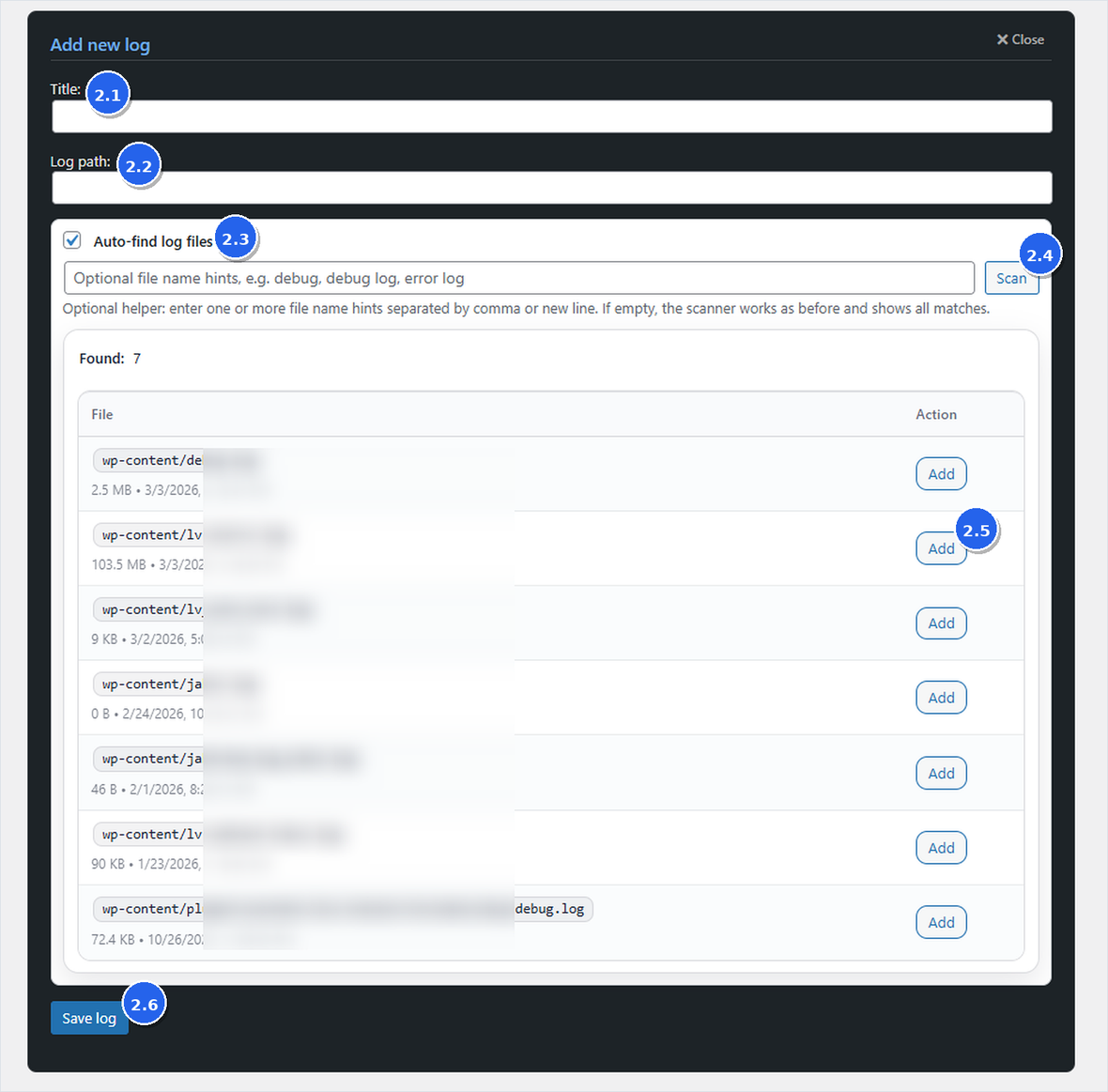
2.1 Title
English
A friendly name shown in the log list and headers. Use clear, recognizable titles, for example debug.log or WooCommerce errors.
Polski
Przyjazna nazwa wyświetlana na liście logów. Wpisz krótki i rozpoznawalny tytuł, np. debug.log.
2.2 Log path (safe path formats)
English
Use safe prefixes to avoid exposing absolute server paths:
- wp-content:: — relative to wp-content
- wp-root:: — relative to WordPress root
- wp-parent:: — relative to the parent directory above WordPress root (advanced)
Polski
Używaj prefiksów bezpieczeństwa, aby nie ujawniać absolutnych ścieżek:
- wp-content:: — względem wp-content
- wp-root:: — względem katalogu głównego WordPressa
- wp-parent:: — względem katalogu nadrzędnego (zaawansowane)
2.3 Auto-find log files
Enables the built-in scanner. For safety, the FREE scanner searches inside the wp-content directory, which is where common WordPress debug logs and plugin logs are usually located.
2.4 Scan
Click Scan to search for matching log files.
2.5 Results list, Add and bulk add
Use Add on a single match to auto-fill Title and Log path with a safe format. When the interface shows bulk controls for scanner results, bulk add is a normal FREE workflow and does not require the separate PRO plugin.
2.6 Save log
Click Save log to add the selected log to Freedomification Log Inspector.
Troubleshooting: Add log
- Not readable: check file permissions on the server.
- No results: the file may be outside wp-content, not created yet, or stored in a custom folder.
- Wrong file selected: adjust the optional scanner filter, for example debug, error or cron.