4. Log window tools
Once a log is added, you can open the log window and use built-in tools to refresh, stream, search, and track changes. FREE focuses on safe viewing and inspection rather than physical file cleanup.
Mini Health Bar and file size
The log preview can show a compact Mini Health Bar for the currently loaded log, including quick counters for loaded lines and detected severity/custom matches. When available, Freedomification Log Inspector also shows the log file size near the preview.
Live Log Stream
Live Log Stream is a local viewing helper for following new lines in the current log preview. Use it when you want to keep an eye on activity while staying inside the same log window.
Comfort View and FREE settings
Comfort View gives the log window a more comfortable height for reading. In FREE settings you can also show or hide selected local tools such as Live Log Stream and Find to keep the interface as simple as you need.
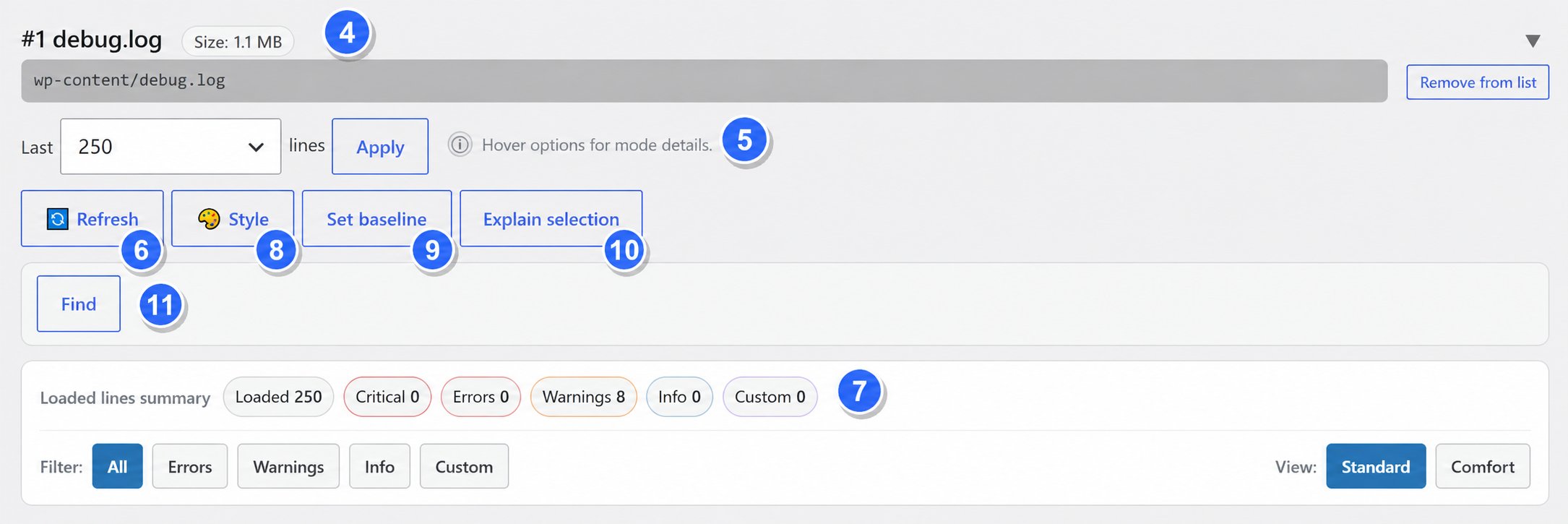
4. Log number (dynamic)
The displayed log number is based on the current list order. It is not permanent and may change when logs are added, removed or sorted.
5. Lines to load
Selects how many lines are loaded into the window: 250 / 500 / 1000 / 2000 / 4000 / All (preview only). In FREE, “All” is a safe preview cap rather than an unlimited full-file read.
6. Refresh (manual)
Reloads the log tail using your current “Lines to load” selection and the same safety limits.
7. Live Log Stream
Starts a lightweight local stream mode for the current log window so you can follow new lines more comfortably during active debugging.
8. Style
Changes the log window theme, for example Terminal, Light, Midnight or Solarized, for better readability.
9. Set baseline (Diff)
Sets a baseline and then shows only lines added after the baseline point. Use it to reduce noise and focus on “what changed”.
10. Explain selection
Shows a basic explanation for recognized error patterns when available. Useful as a quick helper during debugging.
11. Find
Search and filter within the current loaded log preview. Find works as a normal FREE feature. Use || for OR-style phrase matching, for example fatal||timeout||permission.