2. Managing logs
The main Log Viewer screen includes additional PRO controls for working with larger log lists and keeping important files easy to find.
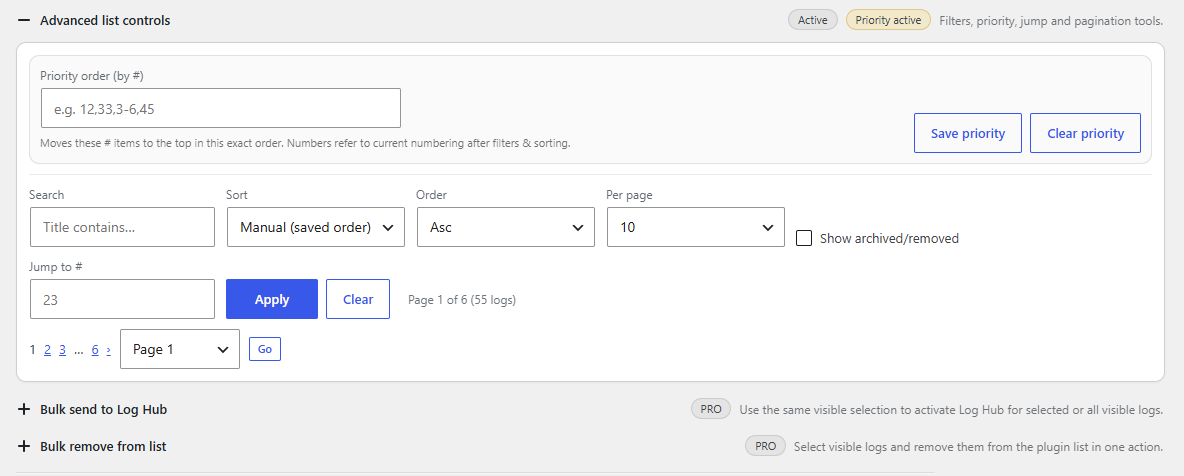
Figure 2. Managing logs — advanced list controls include priority order, search, sorting, per-page display, jump to log number and bulk workflow sections.
You can
- search logs by title,
- sort logs by title, added date, size or saved order,
- set priority logs so they stay near the top,
- rename log labels for easier recognition,
- choose how many logs appear per page,
- send selected logs to Log Hub,
- mute selected logs in Log Hub,
- remove selected logs from the Log Viewer list.
What this screen is useful for
- Priority order lets you move the most important logs to the top in a defined order.
- Search, Sort and Order help when the list becomes longer.
- Per page controls how many logs are shown at once.
- Jump to # helps you move quickly to a specific visible log number.
- Show archived/removed lets you include logs that are not part of the active list anymore.
- Bulk send to Log Hub and Bulk remove from list make repeated actions faster.
Example workflow
- Open Log Viewer.
- Expand Advanced list controls.
- Use search or sorting to find the log you need.
- Set a priority order if some logs should always stay at the top.
- Use a bulk section if you want to add several visible logs to Log Hub or remove them from the list.
Important: Removing a log from the Log Viewer list does not delete the physical log file from the server.