7. Reports
Reports provide a broader view of log activity over time. They are most useful after PRO has collected activity for a while.
Local history: Reports store aggregated activity in your WordPress database. They do not send report data to an external service by themselves.
Dates in Reports: Reports and Today views use the date detected in a log line when it is available. If no date can be detected, the processing day is used as a fallback.
Retention vs display: Default range controls what opens first; retention controls how long stored rows remain before cleanup.
Setup order: If you are configuring PRO for the first time, start with the Recommended first setup, then enable Reports only for logs that need historical tracking.
Reports overview
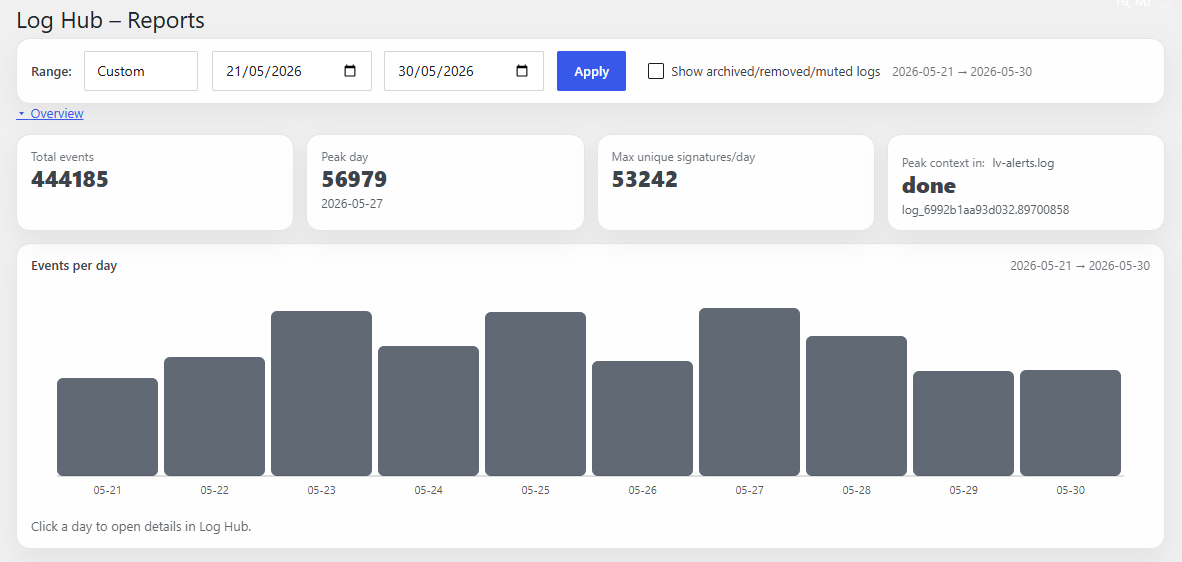
Figure 7A. Reports overview — choose a date range, review total events, peak days, unique signatures and the events-per-day chart.
Logs participating in the report
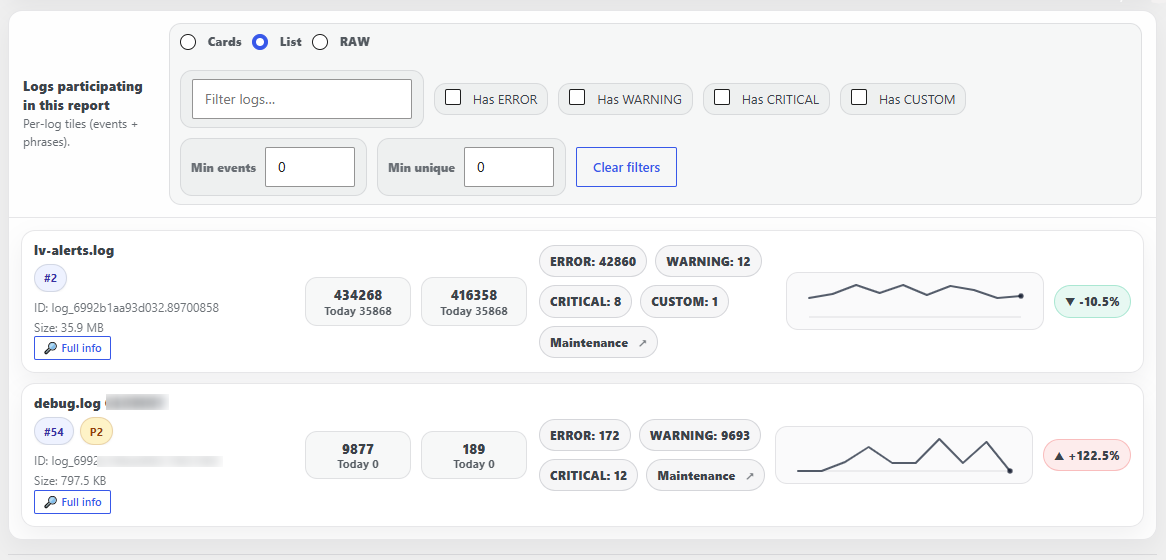
Figure 7B. Participating logs — switch between Cards, List and RAW views, filter by severity/custom hits, review per-log totals, trend badges and open Full info when needed.
You can review
- total events,
- peak days,
- activity trends,
- daily breakdowns,
- per-log summaries,
- critical, error, warning and custom activity,
- filtered views of report data.
Basic steps
- Open Reports.
- Choose a range such as today, yesterday, last 7 days or a custom range.
- Apply filters if needed.
- Click into a day or log for more detail.
- Use Cards, List or RAW depending on how much detail you need.
Reports settings
Reports settings control collection, display defaults, retention and cleanup tools.
- Enable Reports collects and shows aggregated report data.
- CRON scan for Reports allows CRON scans to ingest report data independently of email/webhook alerts.
- Reports troubleshooting log writes extra diagnostics to wp-content/lv-alerts.log; disable it after troubleshooting.
- Include archived/removed/muted logs by default shows those logs in Reports unless filters hide them.
- Default filter: Has CUSTOM opens Reports focused on logs with custom phrase hits.
- Show full original log line keeps the full sample line in report details instead of a shortened label.
- Reports dedupe TTL prevents the same matches from being counted repeatedly on every CRON tick.
- Top items limit controls how many top logs or phrases are stored per day.
- Retention controls how long report data is kept before cleanup.
- Default range controls the initial number of days loaded when opening Reports.
- Per-log order can sort logs by event count or by the current Log Viewer order.
- Hide logs inactive for more than keeps inactive logs out of per-log lists while preserving charts and history.
- Trend calculation controls how the ▲/▼ trend badge is calculated.
Reports vs Log Hub visibility
Reports and Log Hub answer different questions:
- Log Hub shows the current live/tail analysis of selected logs. It can hide entries because of tail size, time window, filters, mute rules or ignore rules.
- Reports stores aggregated historical activity in database tables while Reports collection is enabled.
- Default range controls what range opens first in Reports; it does not delete data. In the current code it is clamped to 1–30 days.
- Retention controls how long historical report data is kept before cleanup removes old rows. The current default is 60 days unless changed in settings.
- Run retention cleanup now applies the retention setting immediately.
Practical example: if Log Hub is set to show only the last 24 hours, older occurrences may disappear from Log Hub, but they can still appear in Reports if they were collected and are still within the retention period.
Reports cleanup tools
- Run retention cleanup now removes old report data according to the retention setting.
- Clear all report data removes all report data.
- Purge log history removes report rows for a single log_id.
Warning: Report cleanup is intentional and can remove stored historical data. Export or back up anything important before clearing report history.
Note: To include a log in Reports, first send the log to Log Hub, add phrases to track, enable Reports and save settings.