4. Searching, filtering, Diff and copy tools
The PRO log window includes tools for finding relevant lines, filtering noisy content, watching only new entries and copying useful fragments for support or debugging notes.
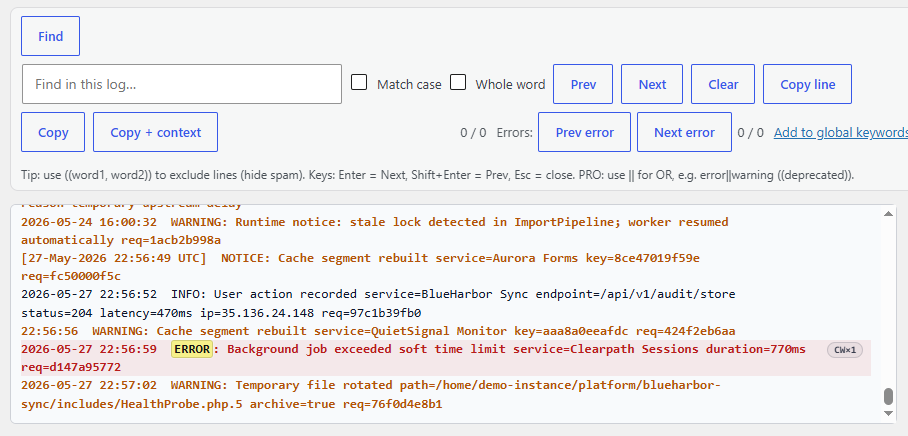
Figure 4A. Find, filtering and copy tools — search inside the loaded log, move between results, copy selected text, copy context and add useful terms to custom keywords.
Search and filtering
- search for text inside the loaded log window,
- match case,
- match whole words,
- jump to previous or next result,
- jump between errors,
- use recent searches,
- add useful terms to custom keywords.
Quick filters and custom keywords
The log window and stream filters can focus on All, Errors, Warnings, Info or Custom. Custom uses your user-defined keywords and phrases, so it can highlight important lines that are not necessarily errors.
Noise hiding and advanced query syntax
- Use ((word1, word2)) to exclude lines and hide noisy matches.
- Use word1||word2 for OR-style searching in PRO.
- Example: error||warning ((deprecated)) can help focus on important lines while hiding deprecated-message noise.
Copy tools
- Copy copies the currently selected text.
- Copy line copies the matching/current line when available.
- Copy + context copies the selected match plus surrounding context. Even if you select only one phrase, it can include the whole related log line plus one line above and one line below.
Diff / new lines workflow
Diff mode helps you see only the lines added after a starting point. It is useful when you want to test one action and ignore older log noise.
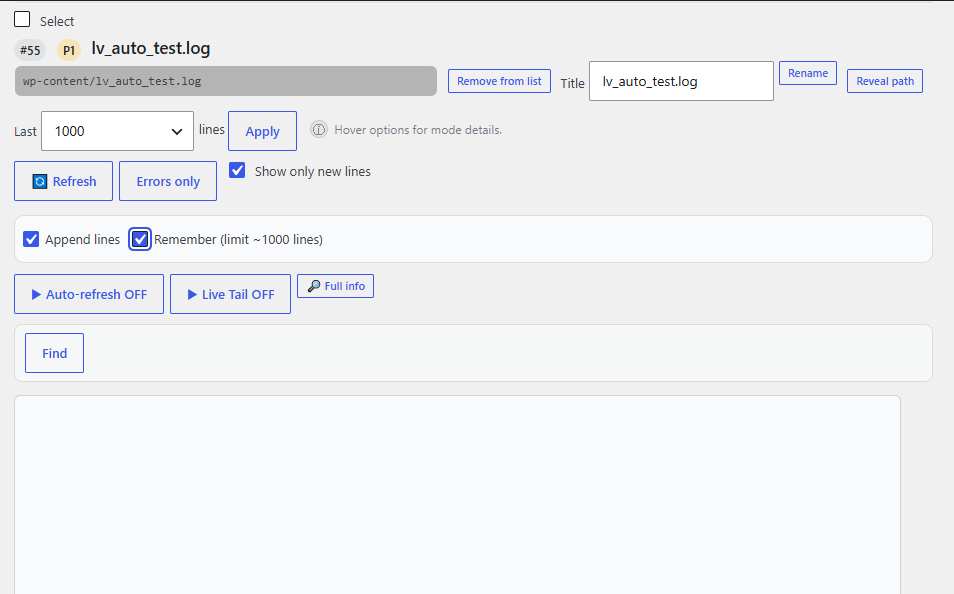
Figure 4B. Show only new lines — Diff mode can show only entries added after the baseline. PRO can also append new Diff results and remember the local Diff view.
- Open the log you want to test.
- Enable Show only new lines.
- Optionally enable Append lines if you want new Diff results to be added below previous results.
- Optionally enable Remember if you want the browser to keep the local Diff view for this workflow.
- Perform the action on your site.
- Click Refresh and review only the newly added lines.
Diff and realtime: Diff does not run together with Live Tail. Diff can work with Auto-refresh, so Auto-refresh can refresh the Diff view while you test.
Warning: Diff mode is designed for new log entries. It is not a full historical comparison tool.
Note: Search works on the log content currently loaded in the browser window.