8. Alerts: Email and Webhooks
PRO alerts can notify you when configured phrases are detected in monitored logs. This section combines per-log phrase rules from Log Hub with the global alert engine in PRO Settings.
Optional delivery: No emails or webhook payloads are sent until you enable and configure the relevant delivery method.
Webhook privacy: Webhooks send data only to the URL configured by an administrator. Keep Include triggered log lines disabled if you want to send metadata and matched phrases without full log lines.
Setup order: If you are configuring PRO for the first time, start with the Recommended first setup, then enable Email Alerts or Webhooks only after the alert phrases are confirmed.
Per-log alerts and ignore rules
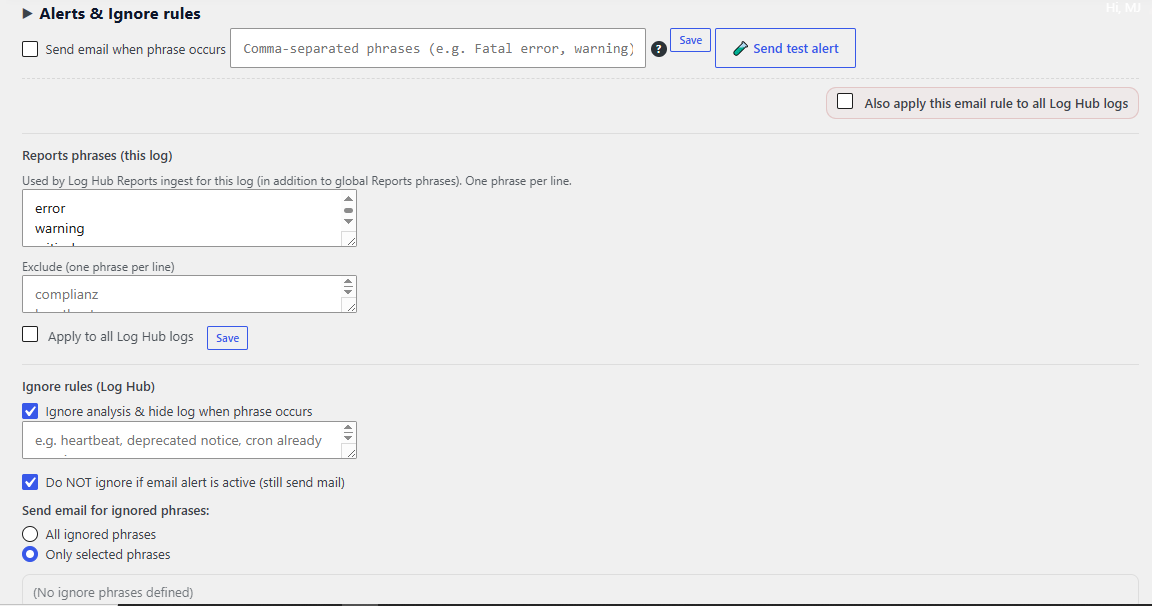
Figure 8A. Per-log rules — enable an email rule for selected phrases, define report phrases and exclude phrases, and configure ignore rules for noisy entries.
- Send email when phrase occurs enables phrase-based alerts for this log.
- Reports phrases and Exclude help control which phrases should be included or ignored by Reports and alert workflows.
- Ignore analysis & hide log when phrase occurs can suppress noisy patterns in Log Hub.
- Do NOT ignore if email alert is active lets a phrase stay hidden from analysis while still being allowed to trigger an alert.
Email notification setup
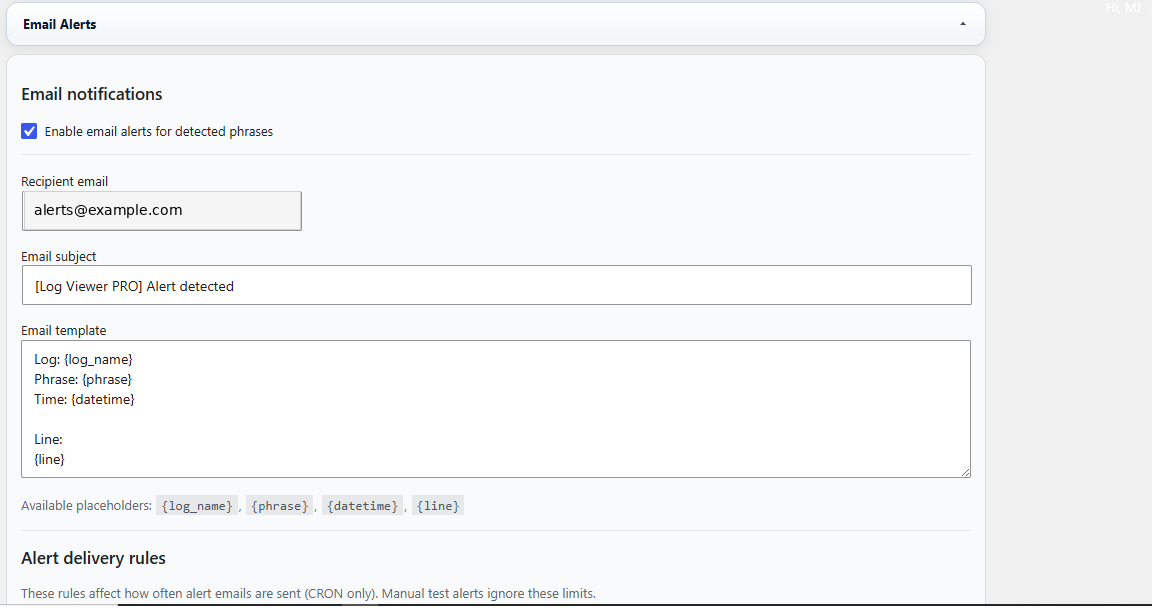
Figure 8B. Email notifications — enable alerts globally, choose the recipient address, define the subject and customize the email template with placeholders such as {log_name}, {phrase}, {datetime} and {line}.
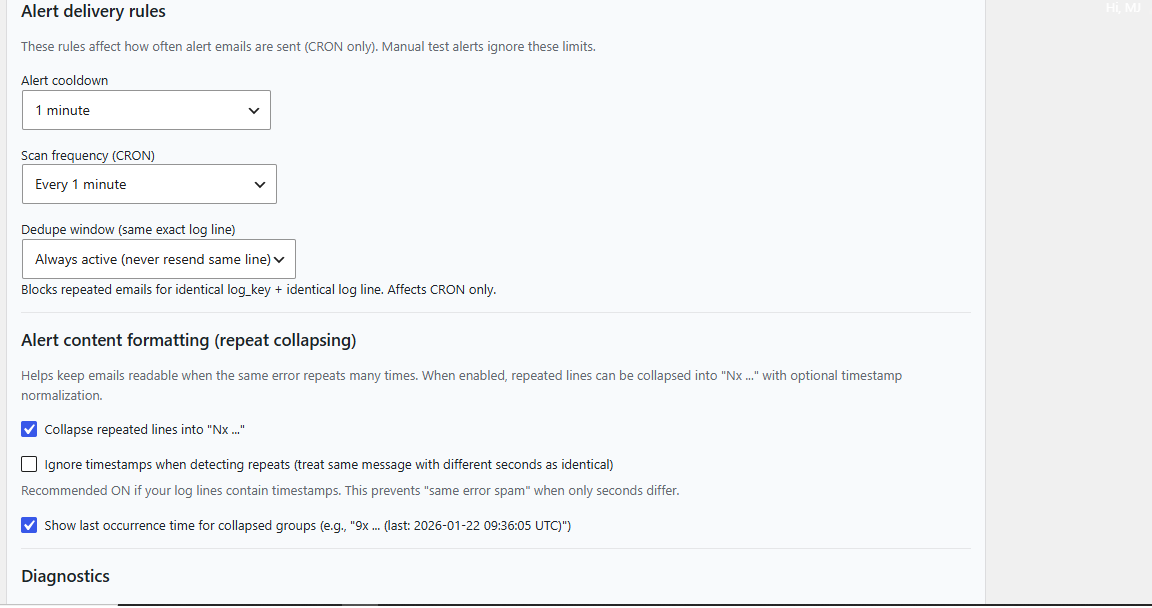
Figure 8C. Delivery rules — configure cooldown, CRON scan frequency, dedupe behavior and optional collapsing of repeated lines so frequent alerts remain readable.
- Alert cooldown limits how often new email alerts can be sent.
- Scan frequency (CRON) controls how often the background alert scan runs.
- Dedupe window prevents repeated emails for the same exact line.
- Collapse repeated lines into “Nx …” makes repeated alerts shorter and easier to read.
- Ignore timestamps helps treat timestamp-only variations as the same repeating message.
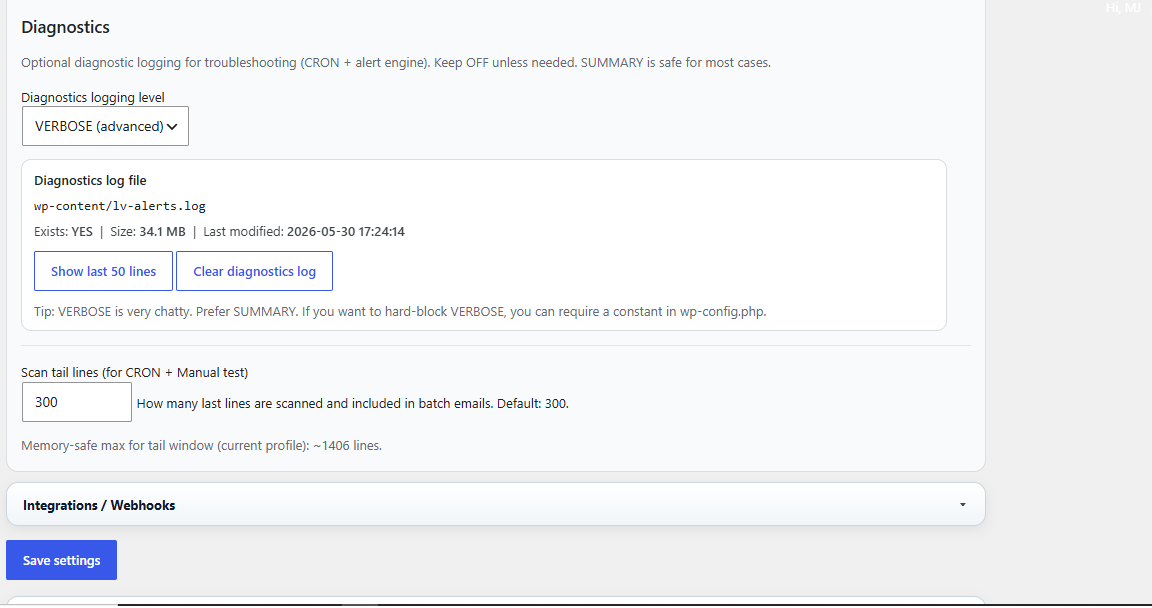
Figure 8D. Diagnostics and integrations — choose the diagnostics logging level, inspect the alert diagnostics log, set scan tail lines and access the Integrations / Webhooks section below.
Webhook delivery
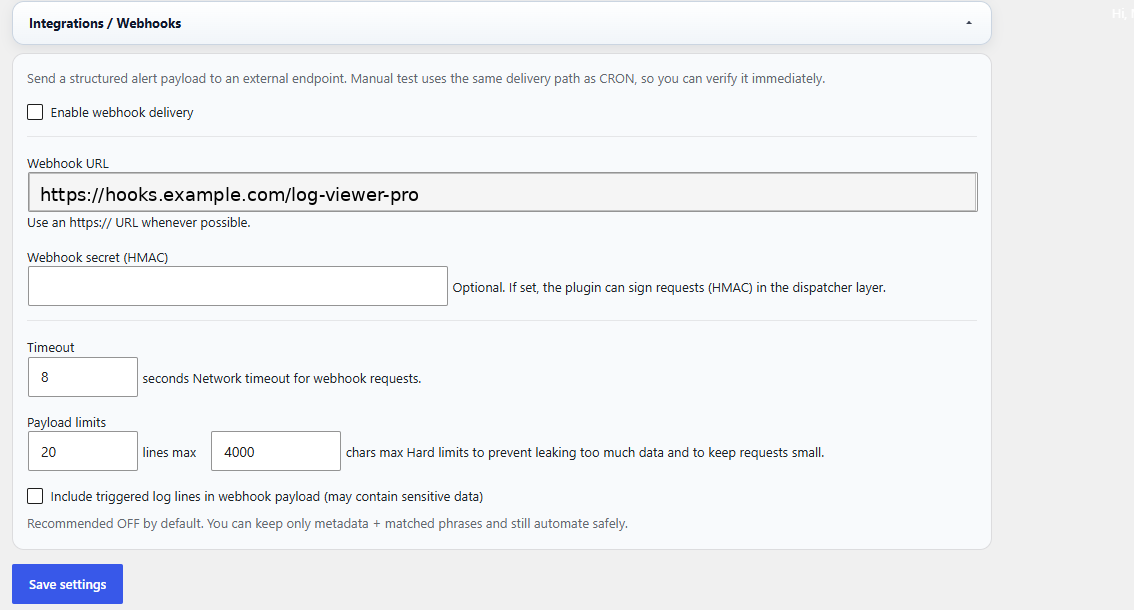
Figure 8E. Webhooks — enable webhook delivery, set the endpoint URL, optionally define an HMAC secret, choose a timeout and set payload limits for lines and characters.
- Enable webhook delivery sends alert payloads to an external endpoint.
- Webhook URL should point to your automation, monitoring or custom integration endpoint.
- Webhook secret (HMAC) can be used to sign requests for safer verification on the receiver side.
- Payload limits help keep webhook bodies small and reduce the chance of sending too much data.
- Include triggered log lines in webhook payload should be used carefully because it may include sensitive data.
Recommended workflow
- Open PRO Settings → Email Alerts.
- Enable email alerts globally and enter the recipient address.
- Adjust cooldown, CRON frequency and dedupe rules.
- Optionally enable repeat collapsing to reduce alert noise.
- Open a log or Log Hub section and define the phrases that should trigger alerts.
- Use Send test alert to confirm that mail delivery works.
- If you need external delivery, open Integrations / Webhooks, enable webhooks and configure the endpoint URL and optional HMAC secret.
Warning: Email delivery depends on your WordPress mail setup. For reliable delivery, use a properly configured SMTP or transactional email service.
Security tip: Treat webhook URLs and secrets as sensitive data. For public documentation, use demo values only — the screenshot here was sanitized to a sample endpoint.