10. Settings, export, import and rollback
PRO Settings is the central control area for the plugin. The settings page groups the most important features into accordion sections, so you can configure the plugin module by module instead of all at once.
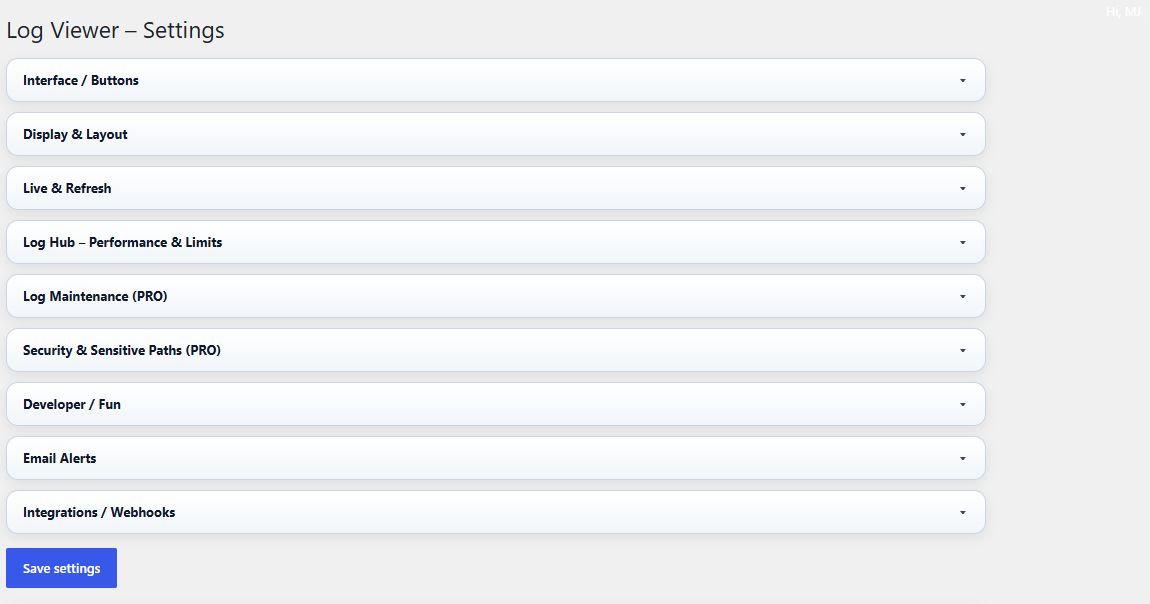
Figure 10A. Settings overview — the main accordion groups include Interface / Buttons, Display & Layout, Live & Refresh, Log Hub limits, Maintenance, Security, Developer / Fun, Email Alerts and Integrations / Webhooks.
Modular setup: Treat this page as a set of optional modules. Configure one area at a time and leave unused modules disabled.
Privacy and workload: Log Hub analyzes local log files, Reports stores local database history, Email/Webhooks require explicit configuration, and Maintenance runs only when enabled.
Main settings groups
- Interface / Buttons — visibility and small UI behavior.
- Display & Layout — log window sizing and presentation preferences.
- Live & Refresh — realtime tool limits and related behavior.
- Log Hub – Performance & Limits — controls for Log Hub workload and limits.
- Log Maintenance (PRO) — maintenance policies and scheduling.
- Security & Sensitive Paths (PRO) — safer handling of paths and sensitive locations.
- Email Alerts and Integrations / Webhooks — notification delivery.
Log Hub visibility and Reports history settings
- Log Hub: tail/lines limits control how many recent lines are analyzed from monitored logs. Larger values may require more memory.
- Log Hub display time window controls which timestamped entries remain visible in the current Log Hub analysis. Available values include all loaded tail lines, last 1 hour, 6 hours, 12 hours, 24 hours, 3 days, 7 days and 30 days.
- Reports retention belongs to Reports settings and controls how long stored report history remains in the database before cleanup.
- Reports default range controls what date range opens first in Reports. It is a display default, not a deletion rule.
Short rule: use Log Hub for current/live analysis and Reports for historical review.
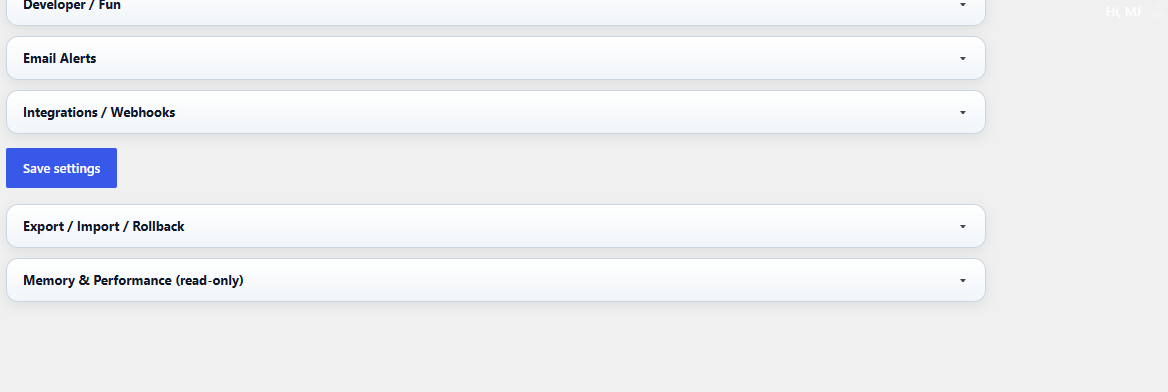
Figure 10B. Lower settings areas — the bottom part of the page includes Export / Import / Rollback and the read-only Memory & Performance section.
Export / Import / Rollback
Export, Import and Rollback are tools for safely moving and restoring plugin settings. They are useful before larger configuration changes or when copying a known setup to another site.
- Export creates a JSON copy of the current plugin settings.
- Import restores settings from a JSON file.
- Rollback restores the most recent backup created before import.
- Memory & Performance shows read-only technical guidance for the current environment.
Recommended workflow
- Open Log Viewer → Settings.
- Expand only the section you want to configure.
- Change settings gradually and click Save settings.
- Before larger changes, export the current configuration as JSON.
- If an import causes problems, use the rollback option to restore the most recent import backup.
Warning: Import overwrites the current configuration. Rollback restores the latest import backup, not a full site backup.
Tip: The screenshots are clear enough for documentation. They work well as overview images and do not need extra numbering.