5. Log Inspector
Log Inspector gives you a detailed view of a selected log. It is best used when you need to understand how a log is currently registered, monitored or connected to PRO modules.
Overview and Log Viewer status
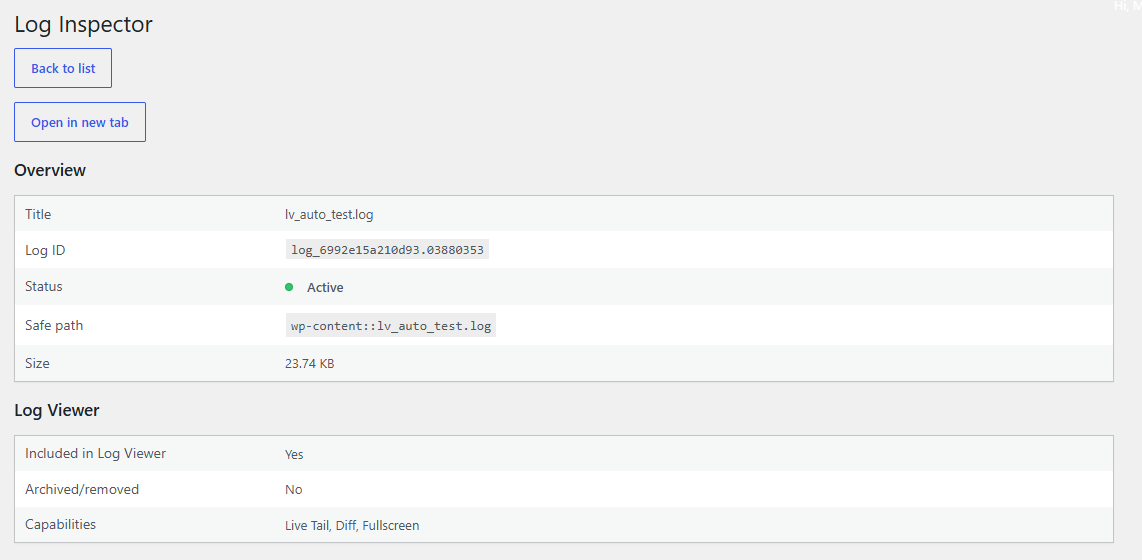
Figure 5A. Overview — Log Inspector shows the title, Log ID, active status, safe path, file size and basic Log Viewer capabilities for the selected log.
This first part helps you confirm that you are inspecting the correct log and that it is active in Log Viewer. File size information can also appear in the Log Viewer preview, so you can judge the size of a log before opening deeper workflows.
Maintenance, Log Hub and Reports
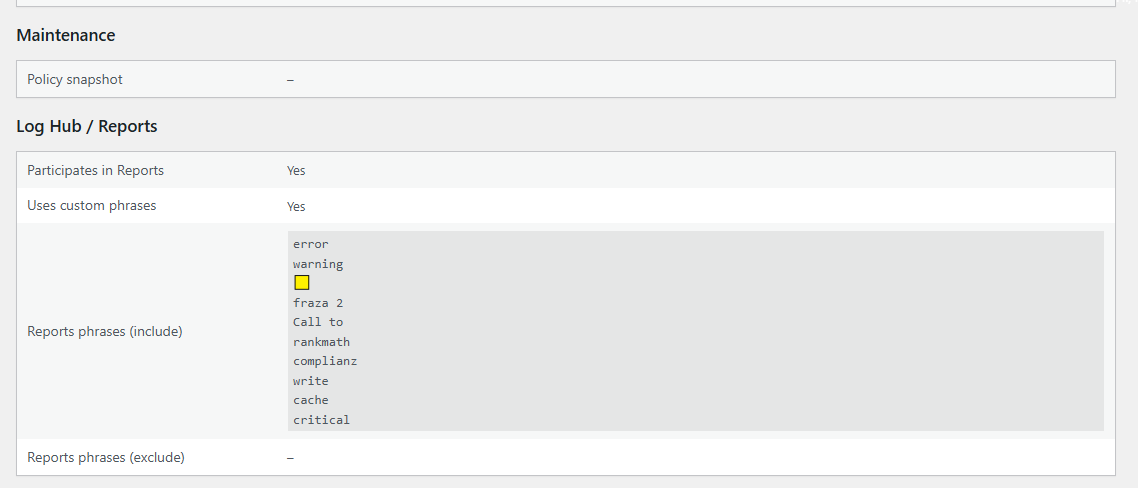
Figure 5B. Maintenance and Reports — this area shows maintenance policy information, whether the log participates in Reports and which included/excluded phrases are connected with reporting.
This section is useful when a log appears in Log Hub or Reports and you want to verify how it is included in monitoring and reporting workflows.
Module participation: Inspector helps you check where a log currently participates, including Log Hub, Reports, Maintenance policies and other PRO workflows. These memberships are not always identical: a Maintenance target can remain enrolled after its log is removed from the main Log Viewer list, while Reports visibility depends on collected report data and the selected filters and time range.
Alerts, webhooks and diagnostics
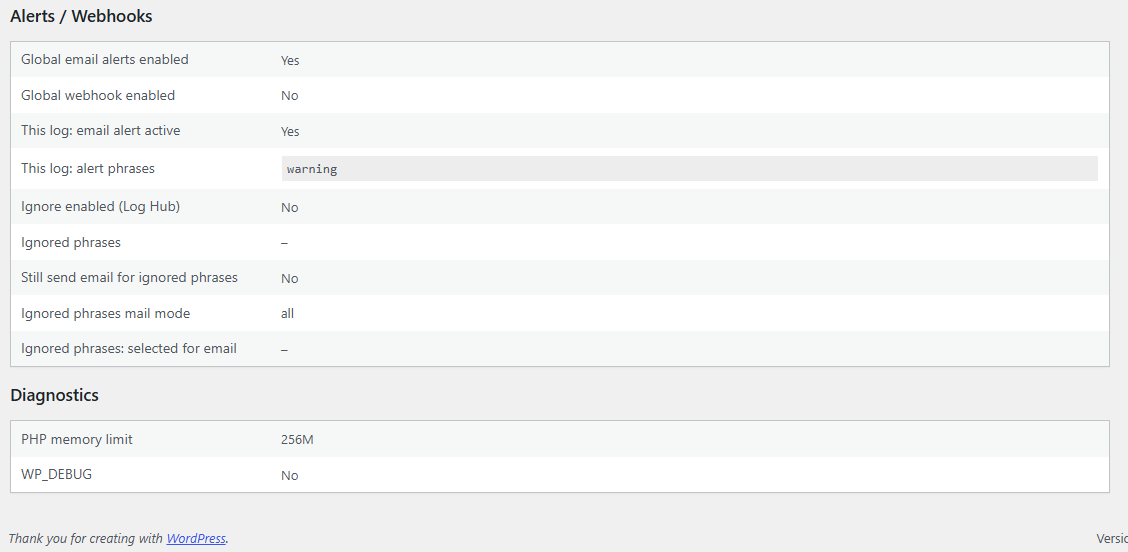
Figure 5C. Alerts and diagnostics — this area shows global email/webhook status, per-log alert status, ignored phrases and basic diagnostics such as PHP memory limit and WP_DEBUG.
Use it to check
- the log title and identifier,
- the safe displayed path,
- file size information,
- whether the log is part of Log Viewer,
- maintenance-related information,
- Log Hub and Reports participation,
- alert and webhook-related configuration,
- basic diagnostics.
How to use it
- Open the main Log Viewer screen.
- Click Full info beside a log.
- Review the sections from top to bottom: Overview, Log Viewer, Maintenance, Log Hub / Reports, Alerts / Webhooks and Diagnostics.
- Return to Log Viewer, Log Hub, Reports or Settings if changes are needed.
Tip: Use Log Inspector when something looks inconsistent between Log Viewer, Log Hub, Reports, Alerts or Maintenance.