3. Realtime tools: Auto-refresh and Live Tail
PRO includes two realtime viewing tools. They help you observe log changes while testing a site action or debugging a problem.
Live Log Stream can show incoming activity in a compact stream. Its quick filters help you focus on All, Errors, Warnings, Info or Custom lines.
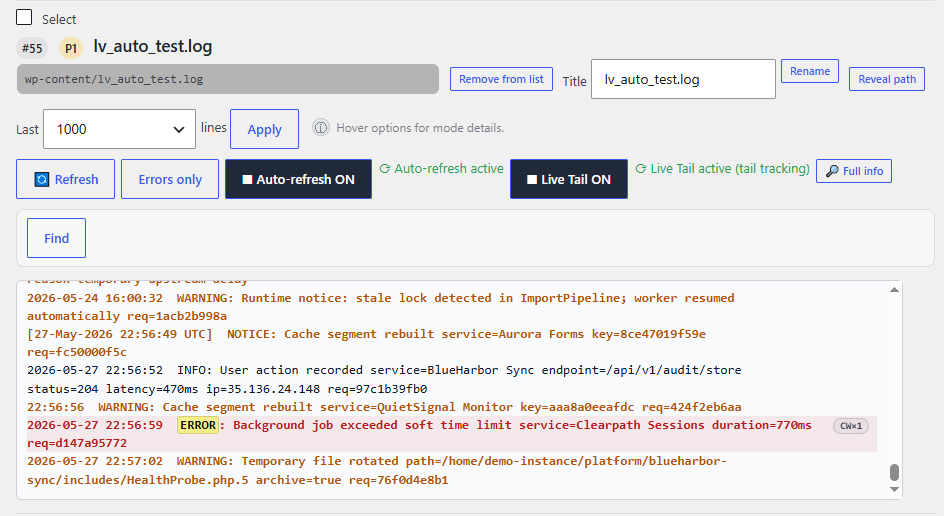
Figure 3. Realtime tools — the log window can be refreshed manually, watched with Auto-refresh, or followed with Live Tail.
Auto-refresh
Auto-refresh reloads the visible log snapshot at a chosen interval.
Use it when:
- you want the log window to refresh automatically,
- you are watching for occasional changes,
- you do not need every new line instantly.
Live Tail
Live Tail follows new lines as they are written to the log.
Use it when:
- you are testing a bug,
- you expect new log entries immediately,
- you want to watch activity as it happens.
Basic steps
- Open a log on the main Log Viewer screen.
- Choose how many lines should be loaded.
- Use Refresh for a manual update, or enable Auto-refresh / Live Tail.
- Perform the action you want to test on your site.
- Watch for new log entries.
- Click the active realtime tool again to stop it.
Realtime buffer: Live Tail and Auto-refresh use a realtime buffer. Because of that, Live Log Stream counters may sometimes differ from the static "Last X lines" preview.
Local notices: conflict notices appear beside the active log. If Live Tail or Auto-refresh is running in another log, the notice can mention that active log by name.
Note: Use only one realtime mode at a time. Live Tail is not used together with Diff mode. Diff can work with Auto-refresh, and Auto-refresh can refresh the active Diff view.
Tip: The Full info button is useful when you need to inspect the selected log configuration before debugging.