6. Log Hub
Log Hub gives you a central overview of important activity across selected logs. It helps separate useful signals from noisy log content.
Log Hub membership: Log Viewer is the main list of logs, but Log Hub does not automatically mirror every entry from that list. Log Hub shows only logs that have been sent or added to it. If a log is missing, first check whether it was added to Log Hub from the main Log Viewer screen. Participating logs follow their relative Log Viewer order.
Setup order: If you are configuring PRO for the first time, start with the Recommended first setup, then enable Log Hub only for selected logs.
Overview and summary
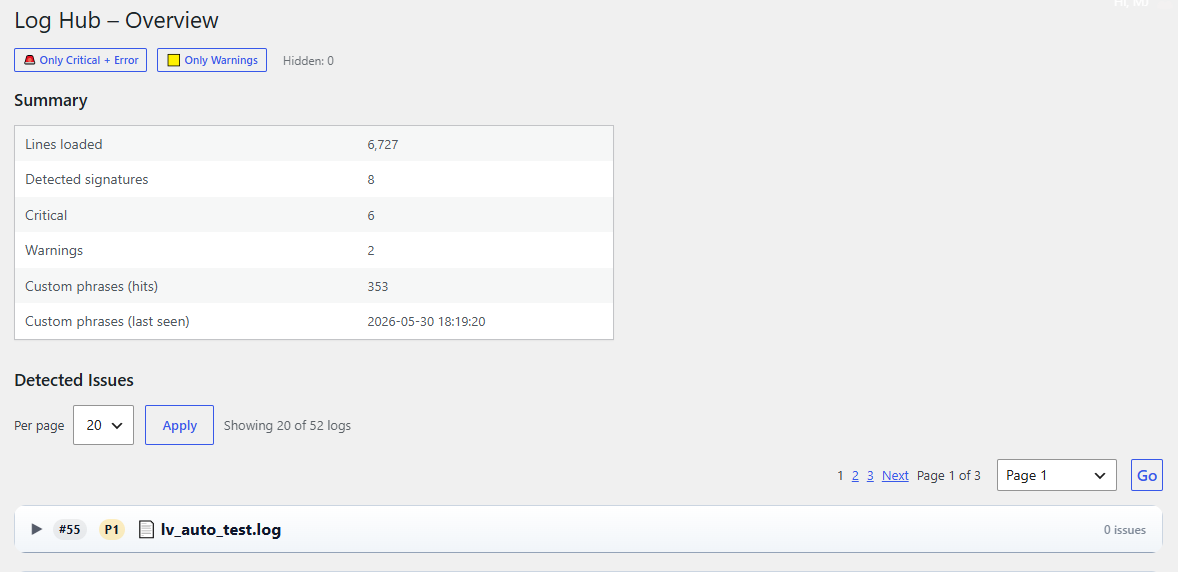
Figure 6A. Log Hub overview — the summary shows loaded lines, detected signatures, critical issues, warnings and custom phrase hits. Filters help focus on only critical/error items or only warnings.
Log-level rules
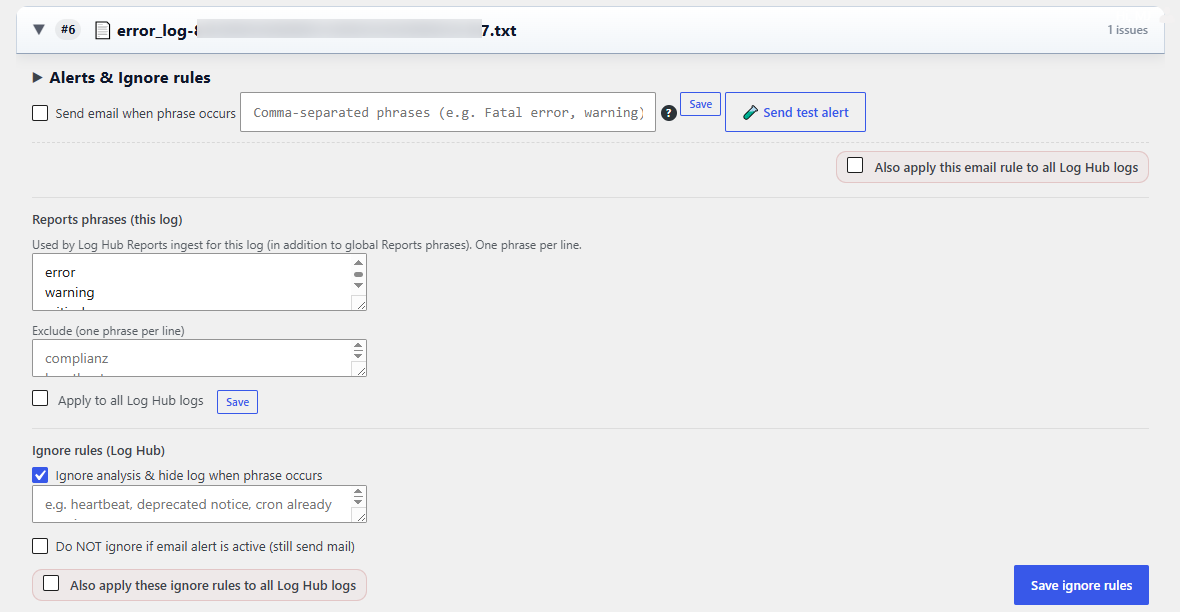
Figure 6B. Log-level rules — each monitored log can have alert phrases, Reports phrases, excluded Reports phrases and ignore rules.
Use this area to decide what should be tracked, what should trigger email alerts and what should be hidden as known noise.
- Send email when phrase occurs can enable alerts for selected phrases.
- Reports phrases decide which custom terms are counted for this log in Reports.
- Exclude lets you avoid tracking phrases that are not useful for reporting.
- Ignore rules can hide known noisy entries from the Log Hub view.
Detected issues and recent occurrences
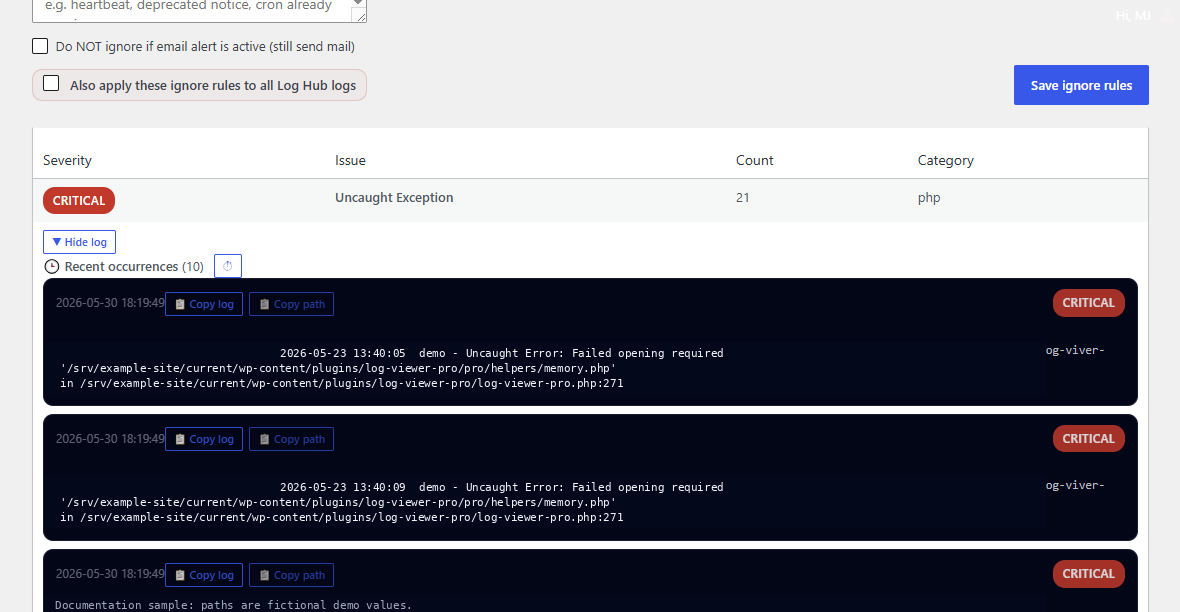
Figure 6C. Detected issues — recent occurrences show the matched log entries with actions such as Copy log and Copy path. Paths in this documentation image use fictional demo values.
What Log Hub shows and why entries may disappear
Log Hub is a live/current analysis view. It reads a limited tail of the monitored log files and then applies the current filters, ignore rules and time-window settings. It is not a full historical archive.
- Loaded lines depend on the Log Hub line limit and RAM-safe limits in PRO Settings → Log Hub – Performance & Limits.
- Log Hub display time window can limit visible timestamped entries to recent ranges such as last 1 hour, 6 hours, 24 hours, 7 days or 30 days.
- The 30-day option means “show entries from the currently loaded/analyzed log tail that are within the last 30 days”. It does not load 30 days of historical data from Reports.
- Lines without a recognizable timestamp are kept visible, so non-standard log formats do not disappear unexpectedly.
- Known noisy lines can also disappear from the visible Log Hub view because of ignore rules, mute rules or active filters.
Important: If an occurrence disappears from Log Hub, it may still be available in Reports if Reports collection was enabled and the data is still inside the Reports retention period.
Common workflow
- Add important logs to Log Hub from the main Log Viewer screen.
- Open Log Hub.
- Review the summary and detected issues.
- Expand a log card and configure phrases or ignore rules.
- Use recent occurrences to copy useful examples for debugging or support.
Tip: Add only useful logs to Log Hub. This keeps the overview readable and reduces unnecessary scanning.
Privacy note: Avoid publishing screenshots with real server paths. Use demo paths or mask sensitive fragments before adding images to public documentation.